Asset Mass Update
This tool provides the following functionalities to tech admins:
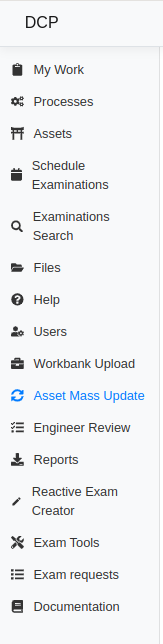
To access the Asset Mass Update tool, simply click on the "Asset Mass Update" option.
The Asset Mass Update tool allows you to update asset properties in bulk using an Excel spreadsheet.
It’s recommended to use the template spreadsheet. You can download it by clicking the "Download Template" button. The file will typically be saved in your Downloads folder. Open the file, fill in the appropriate information, and upload it once completed.
The asset mass update template contains 39 columns. Each row must include a valid CARRS GUID, which uniquely identifies an asset. This is required for updating asset data.
Note: Although the CARRS GUID is used to locate the asset in the system, it can be updated using this tool. To update the CARRS GUID, enter the current value in the CARRS GUID column and the new value in the New CARRS GUID column.
To remove or clear a property value, use the placeholder {EMPTY}. Please note:
{EMPTY}is case-sensitive.- Include the curly braces
{}exactly as shown.
To enable or disable checkbox properties such as Electrification, HCE, or Tenanted, use TRUE to enable and FALSE to disable the value.
If a property value is left blank in the spreadsheet, the system will skip that field and leave the existing value unchanged.
Once the spreadsheet is filled out, click the "Upload" button. A dialog will appear, as shown below:
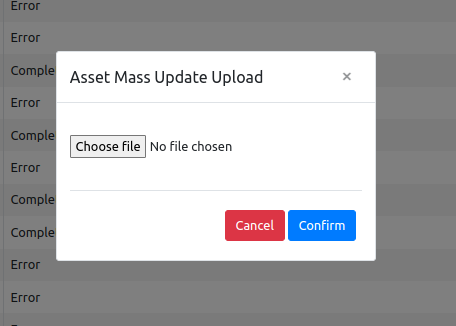
In this dialog:
- Click the "Choose file" button and select your spreadsheet.
- The selected file name will be shown next to the button.
- Click "Confirm" to start processing.
The processing results will be displayed in a grid, as shown below:
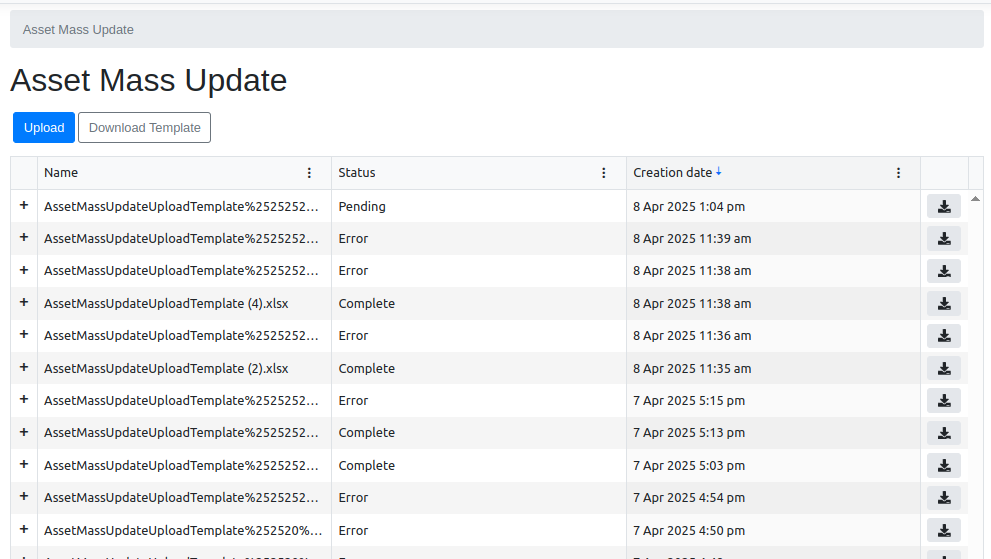
This grid displays the names of processed files, their current status, and the completion date.
Click the "+" symbol on the left of a row to expand and view detailed processing results:
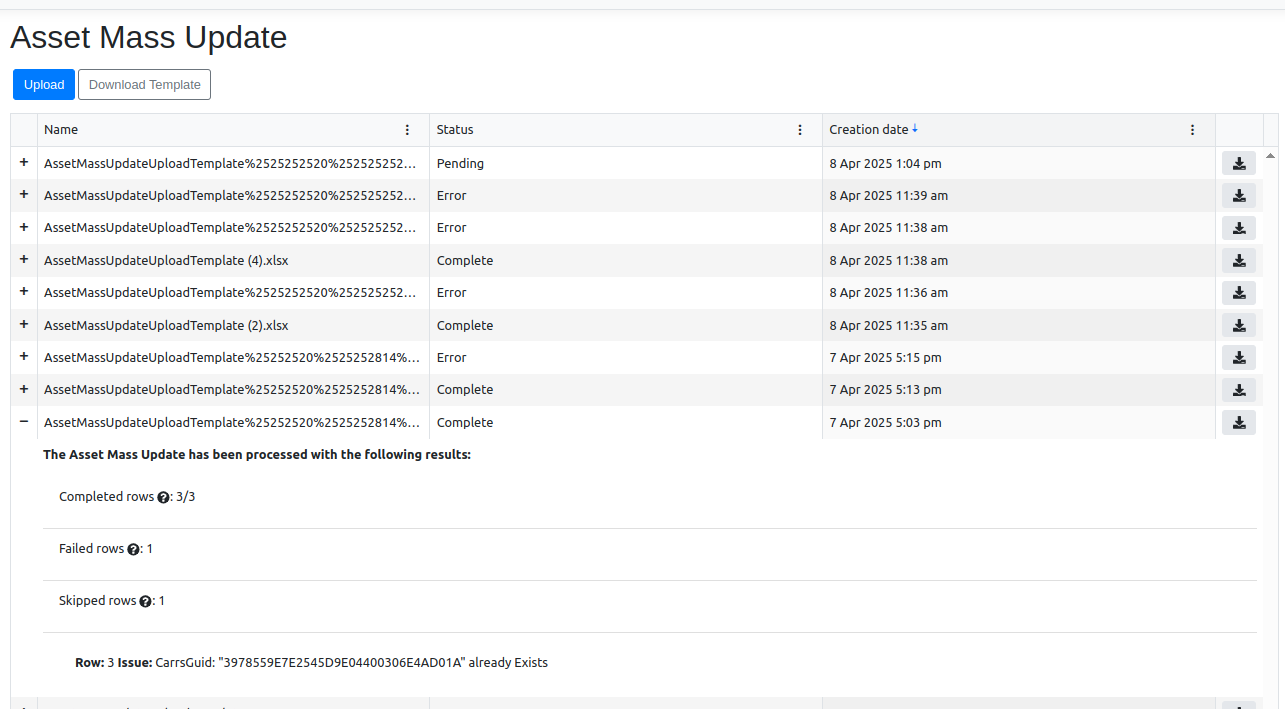
The results grid shows the number of Completed, Failed, and Skipped rows. It also provides comments for each failed row, detailing the specific error.
Note: Skipped rows indicate that the values provided in the Excel sheet are exactly the same as the existing values in the system—no changes were necessary.