Commercial Report
Intro
The Commercial Report form allows you to view commercial contractual data for a Route by Contract year. It also allows you to make adjustments to the value of examinations against scheduled examinations for a Contract year.
The form has two Tabs, labelled 'Report Download' (screenshot - arrow 1) and 'Mass Update' (arrow 2).
Report Download
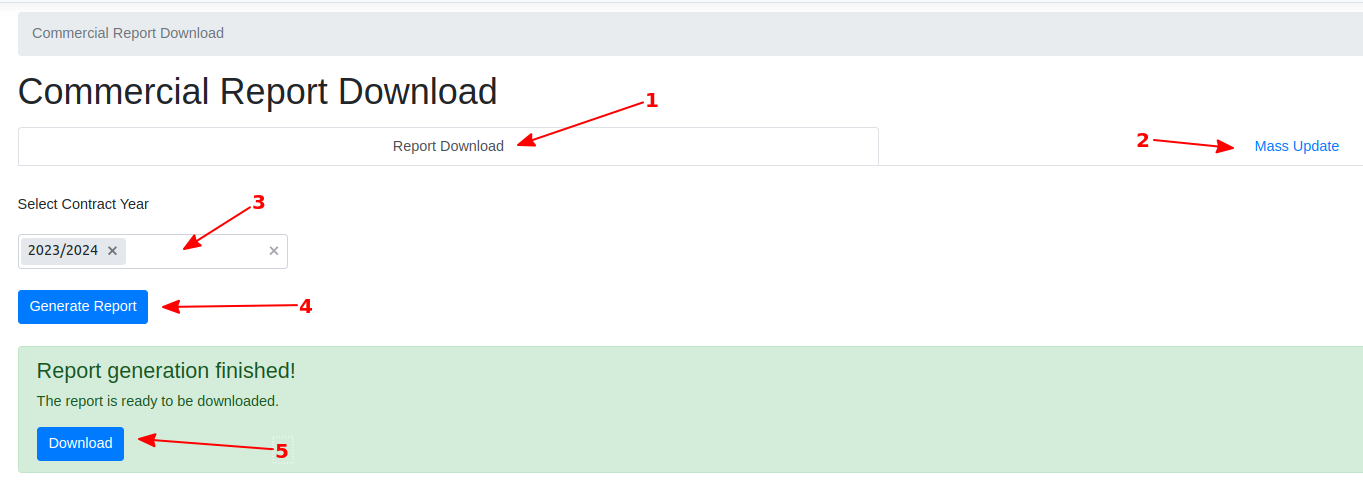
To download the commercial report for a Contract year, select the Contract year from the drop-down (arrow 3) and then click the 'Generate Report' button (arrow 4). You will get a green message box, saying 'Report is being Generated'. Once done, this will change to 'Report generation finished'. At this point, a 'Download' button will appear (arrow 5). Click on this and the Commercial report will save to your machine.
The spreadsheet contains columns which identify the examinations and value of examinations from the schedule for the Contract year selected.
Important
The Process Id value is unique for every exam. This is the key field used to identify the examination when using the update tool on the 'Mass Update' Tab.
Note
You will notice that the spreadsheet has columns 'SoR' ('Schedule of Rates') and 'Total. The SoR column represents the base value of the examination, which is calculated by NR from Exam Type, Asset Type & Asset Dimensions. The 'Total' column represents the total invoice value of the examination once all 'extra overs' have been taken into account.
Mass Update
Commercial users can make adjustments to the Commercial Report. To do this, select the 'Mass Update' Tab. Here, you can use a Mass update spreadsheet which you have been using previously or you can download a new blank spreadsheet by clicking on the 'Download Template' button (arrow 1 in the screenshot below)

This 'Commercial Mass Update' Spreadsheet has the first column 'Process Id', highlighted yellow (See the red IMPORTANT section above). This must be provided for every single update row you supply, to identify the exam you are supplying commercial data for. The 'So R' column, as stated above, should hold the basic examination value. The other columns are for entering specific chargeable aspects of the examination process. There are many different chargeable items which can be incurred during and peripherally to different examinations.
Once you have filled in your spreadsheet, you can click the 'Upload' button (arrow two in the screenshot). A 'Pending' Status message will appear after the uploaded spreadsheet name. If the sheet could not be processed at all, the Status column will say 'Error'. If processing has been successful or partially successful, the Status message will be 'Complete'. At this point, you can click the '+' arrow, to the left to see a detailed breakdown of the processing.