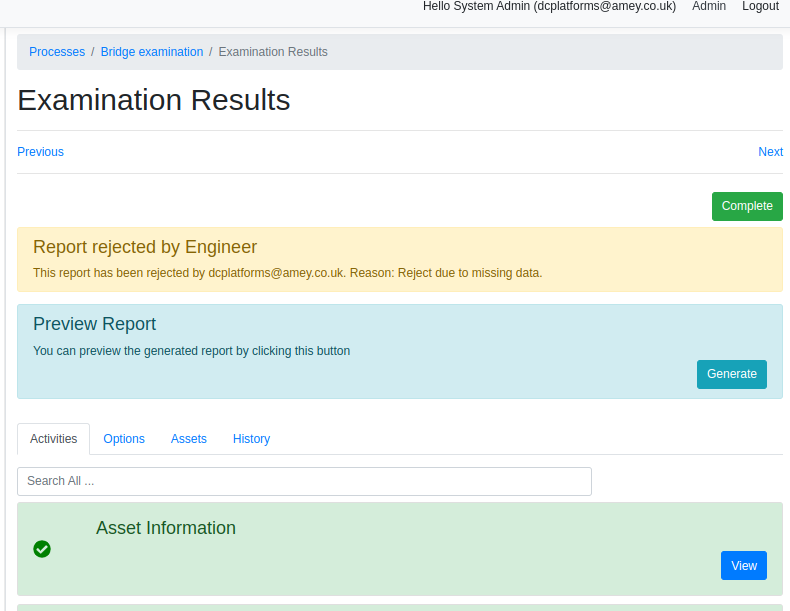
Engineer Review
The Engineer review is based on a group of activities, and these activities may vary depending on the selection of the "Process Template." In this section, the Engineer provides all the necessary information across multiple activities. The Engineer review can be carried out once the Examination section has been completed.
An Engineer can be assigned to an examination using the "Engineer Review" tool. For further details, please refer to the "Engineer Review" documentation.
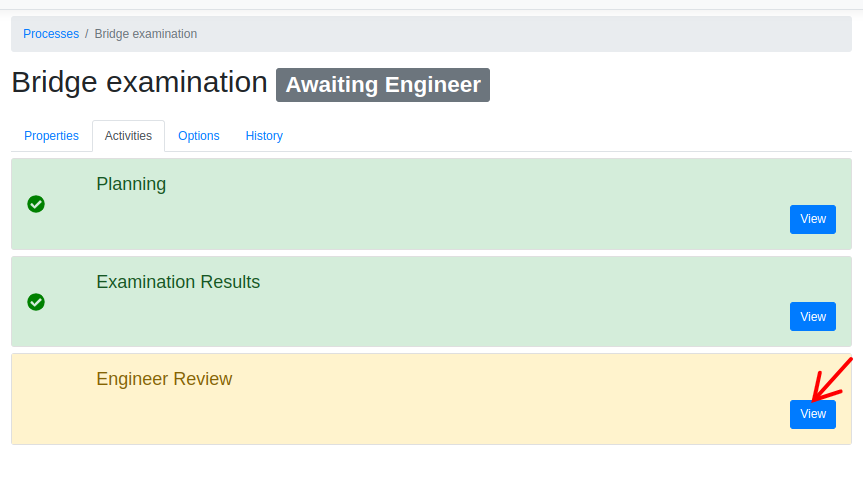
Tracking Defect
To view or enter the Tracking Defect, the examiner must click on the appropriate activity.
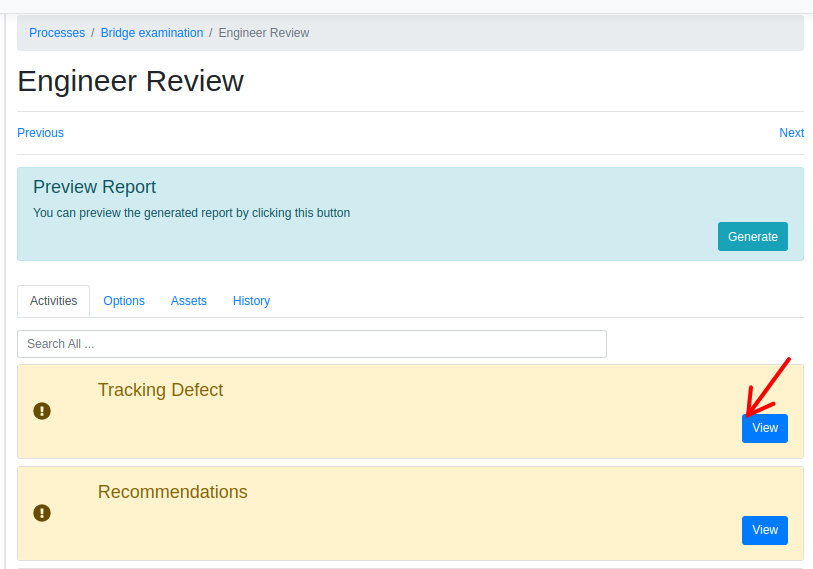
In this activity, any defects associated with the Asset will be automatically populated. The Engineer will have the capability to review all open defects.
Additionally, the Engineer has the option to create a new defect by clicking on the "Create" button.
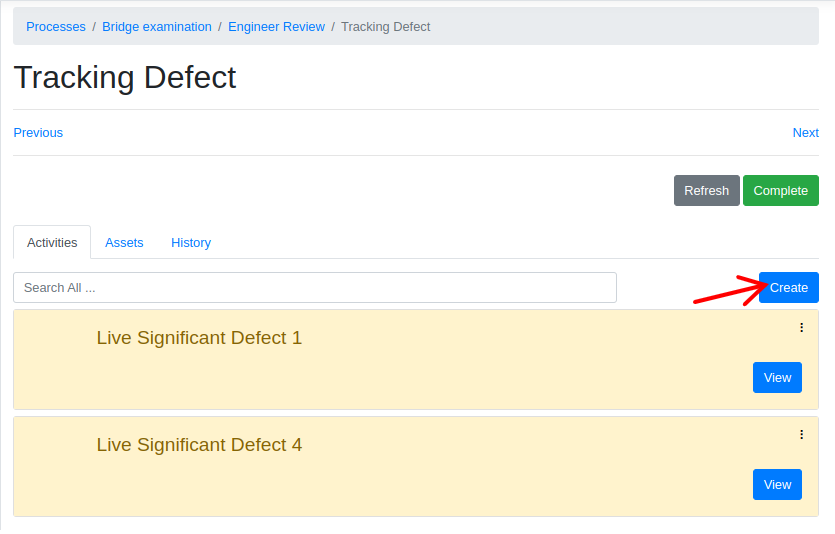
To view or enter a specific defect, the examiner must click on the appropriate activity.
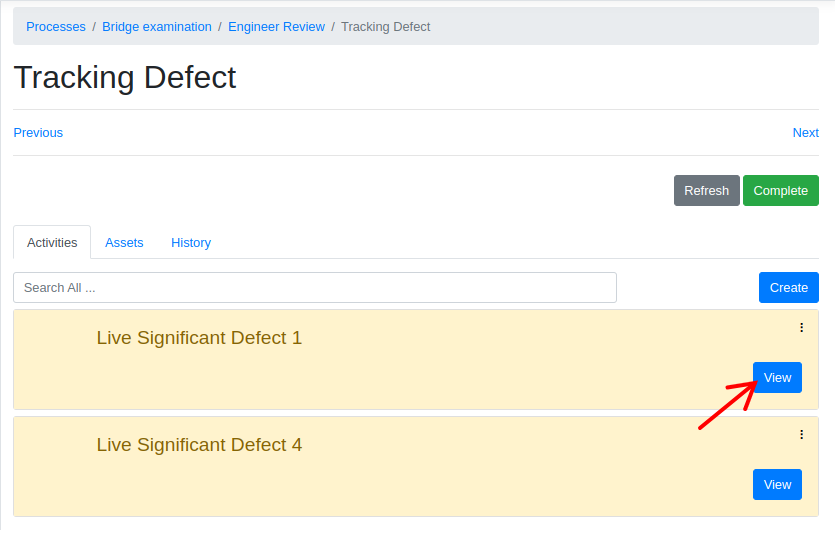
Furthermore, the Engineer is required to input the following information for each defect: "Access Gained" "Rec. Raised" "NR Actioned" and so on.
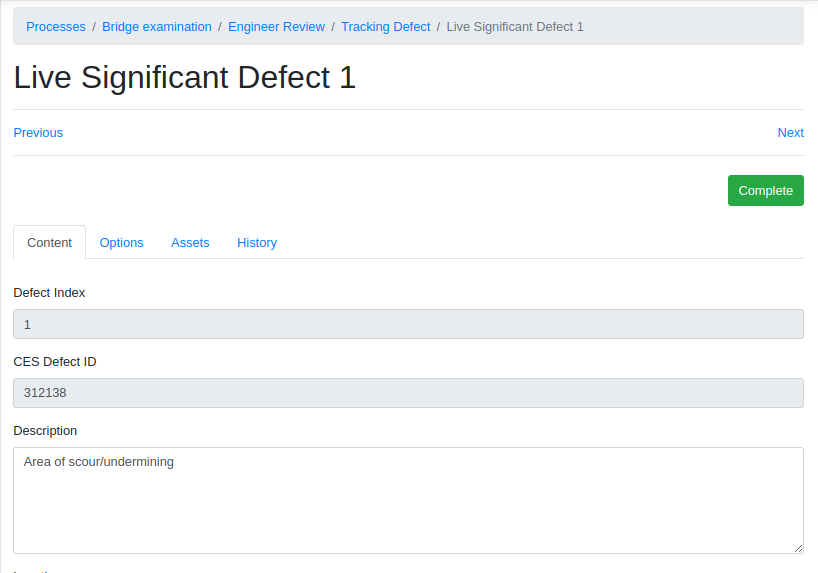
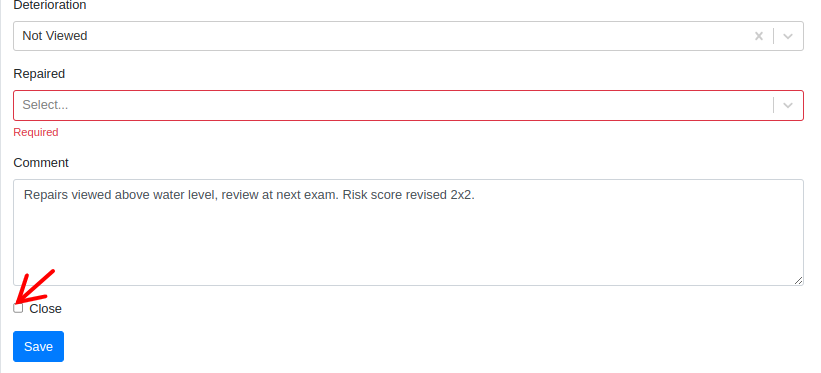
The Engineer can also close the defect by clicking on the "Close" checkbox.
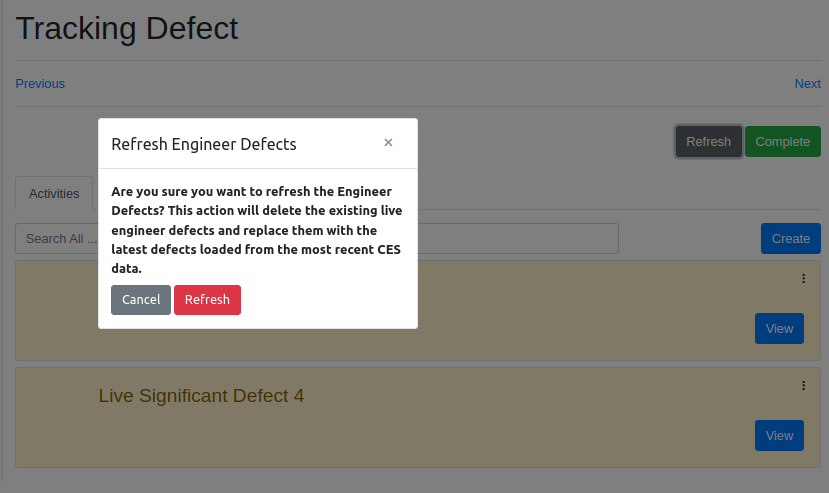
The engineer has the capability to refresh the defects by clicking on the 'Refresh' button.
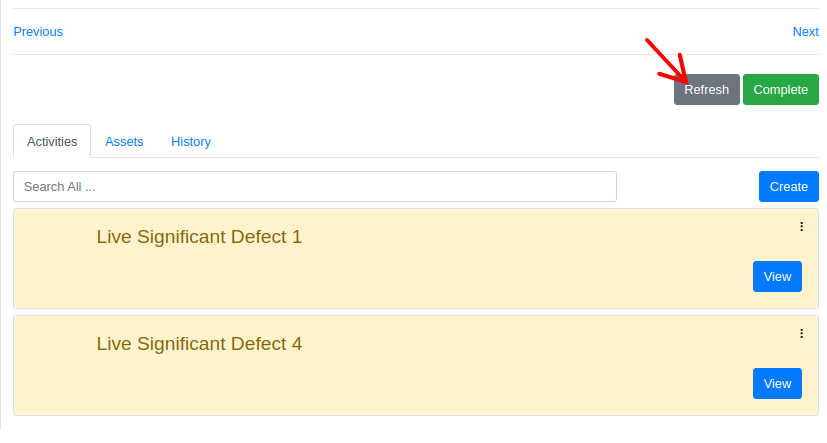
This action will delete the existing live engineer defects and replace them with the latest defects loaded from the most recent NR data.
Recommendations
To view or enter the Recommendations, the Engineer must click on the appropriate activity.
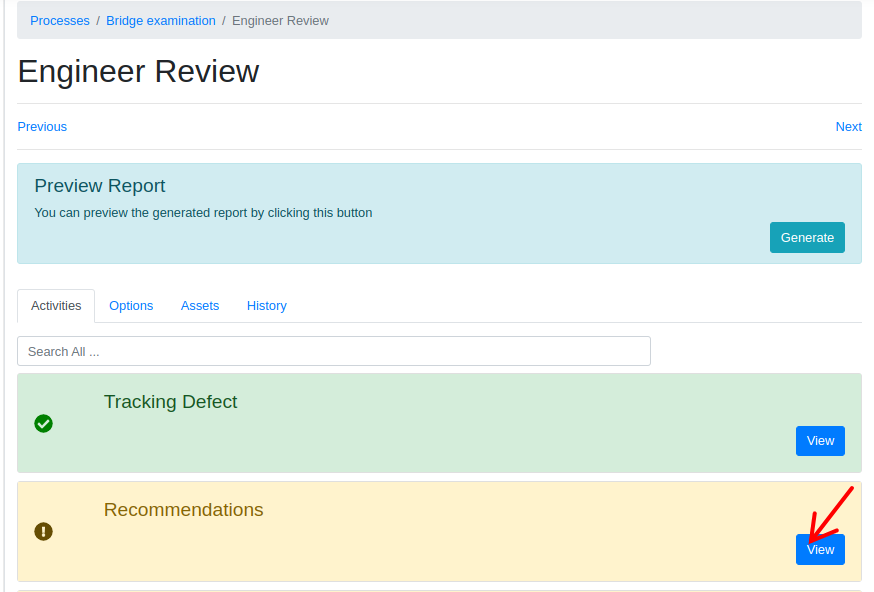
Engineer can load the previous recommendations into this examination by using the Engineer Review Dashboard. For further details, please refer to the "Engineer Review" documentation.
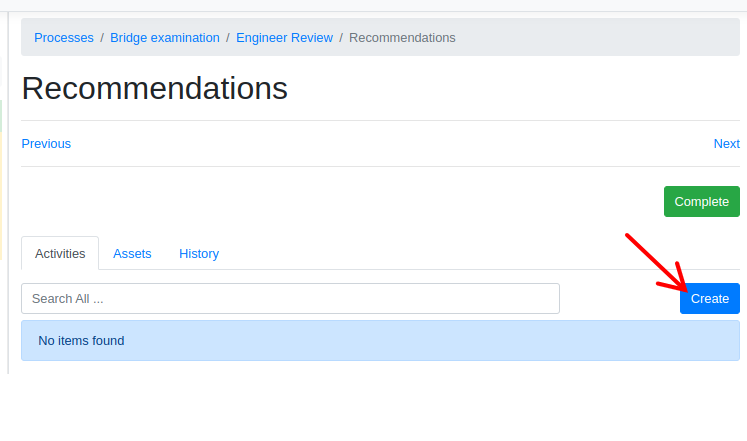
Additionally, the Engineer has the option to create a new recommendation by clicking on the "Create" button.
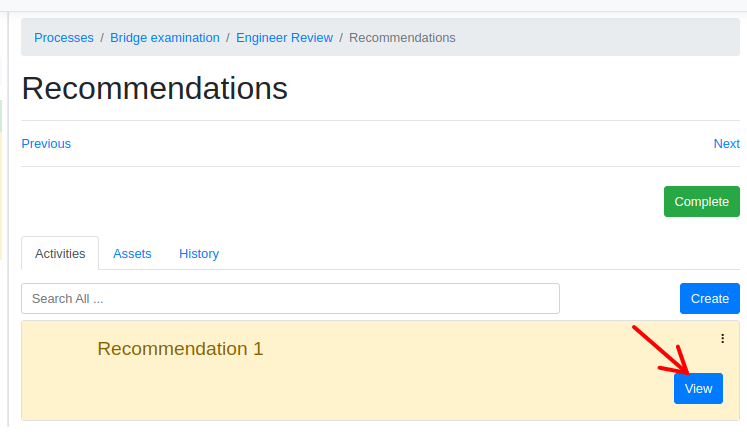
To view or enter a specific recommendation, the Engineer must click on the appropriate activity.
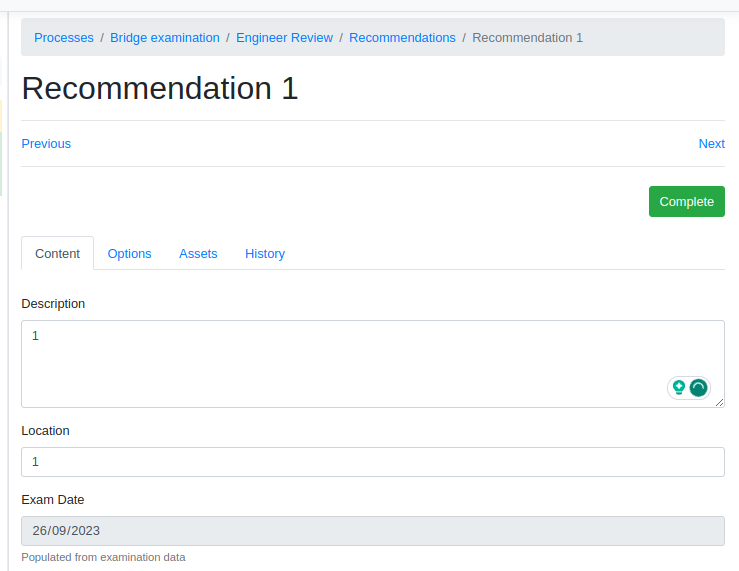
The Engineer is required to input the following information for each newly created recommendation: "Description", "Location", "Quantity (value)" and so on.
Unexamined Parts
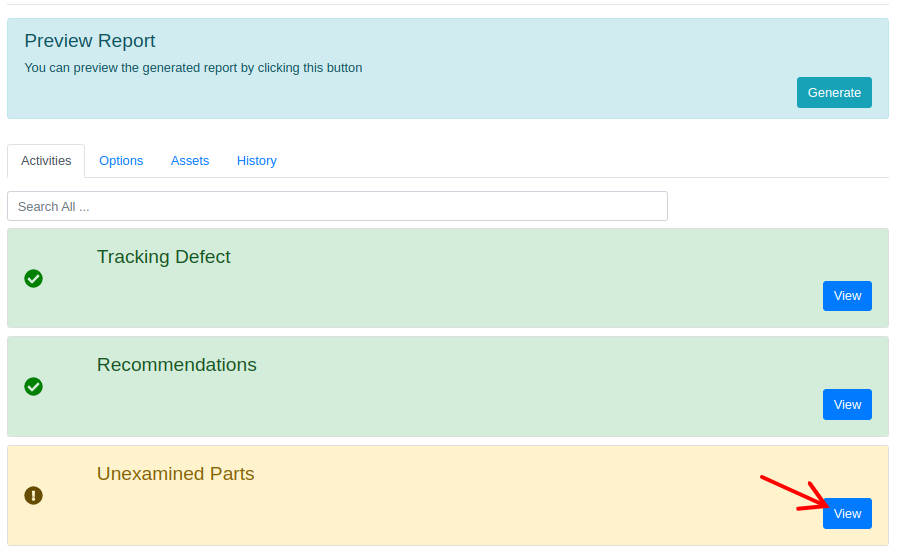
To view or enter the Unexamined Parts, the Engineer must click on the appropriate activity.
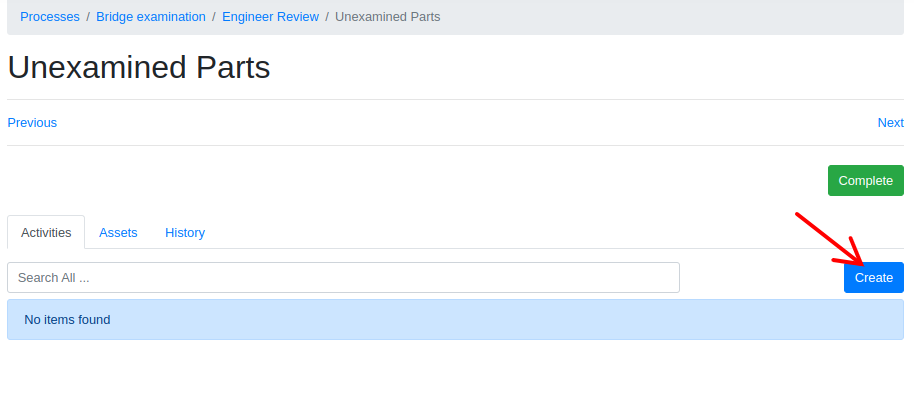
In this activity, the Examiner can create an Unexamined Part by clicking the "Create" button.
To view or enter a specific Unexamined Part, the Engineer must click on the appropriate activity.
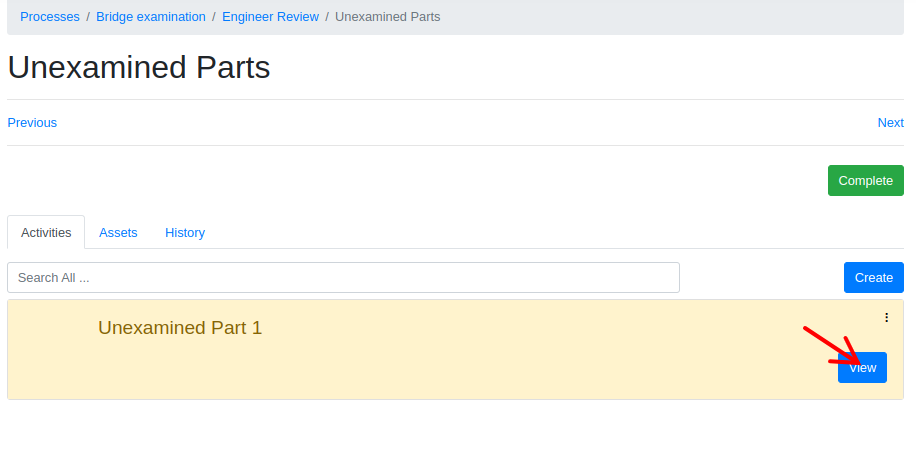
The Engineer can provide the following information for each Unexamined Part: "Part", "Reason", and "Comment".
Review Findings
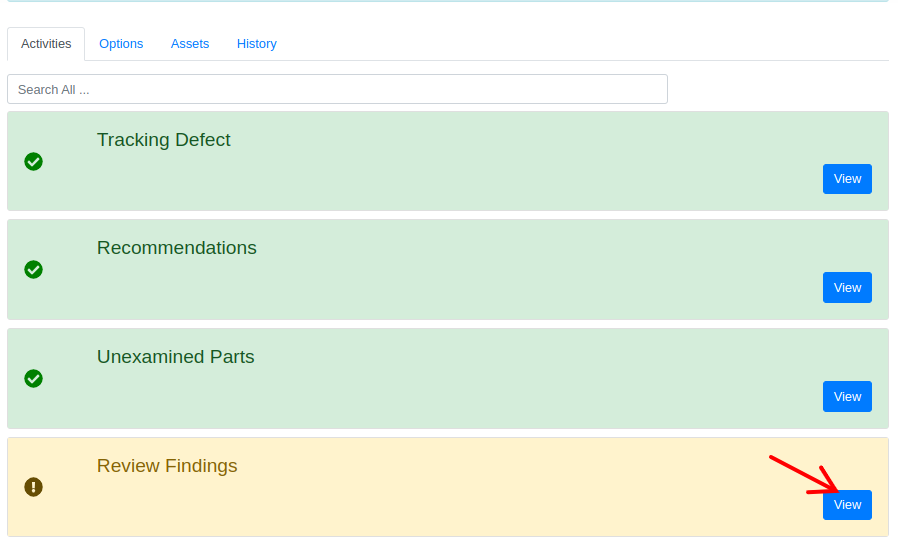
To view or enter the Review Findings, the Engineer must click on the appropriate activity.
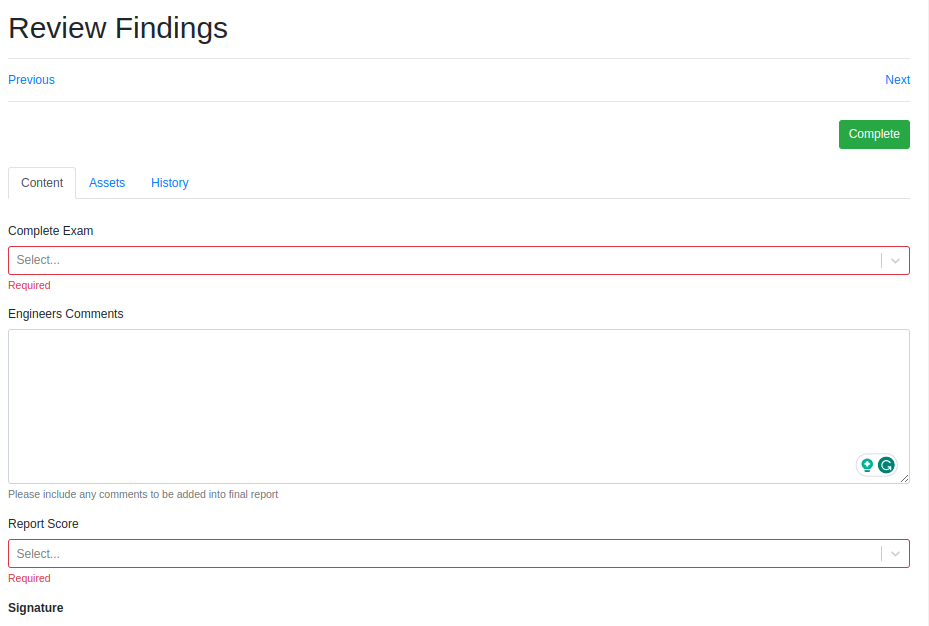
In this activity, the Engineer must provide input in the "Complete Exam" field, including their "Engineer comments." Additionally, they are required to enter a "Report Score". When a report is generated an image (JPG) of the Examiner's signature will be created from their Name.
Engineer Approval
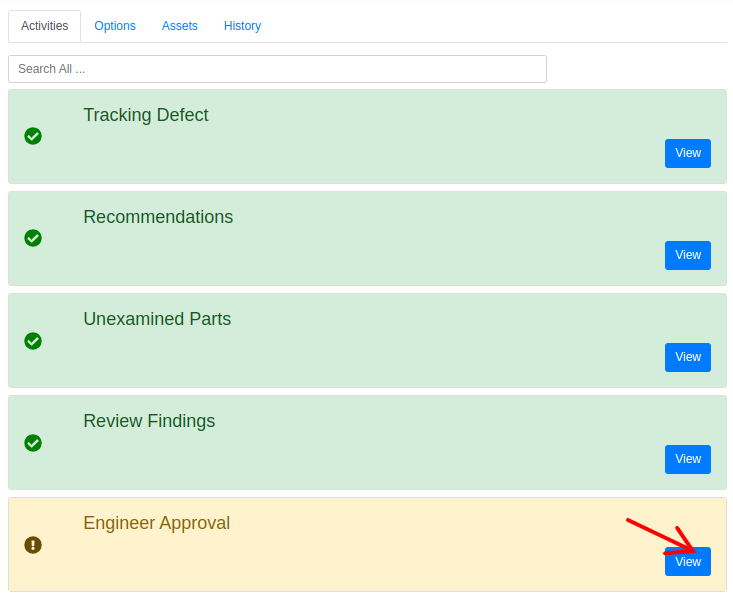
To view or enter the Engineer Approval, the Engineer must click on the appropriate activity.
The user can also download the report. The assigned Engineer can approve or reject the report by clicking on the "Approve" or "Reject" buttons. These buttons are only visible to the assigned Engineer.
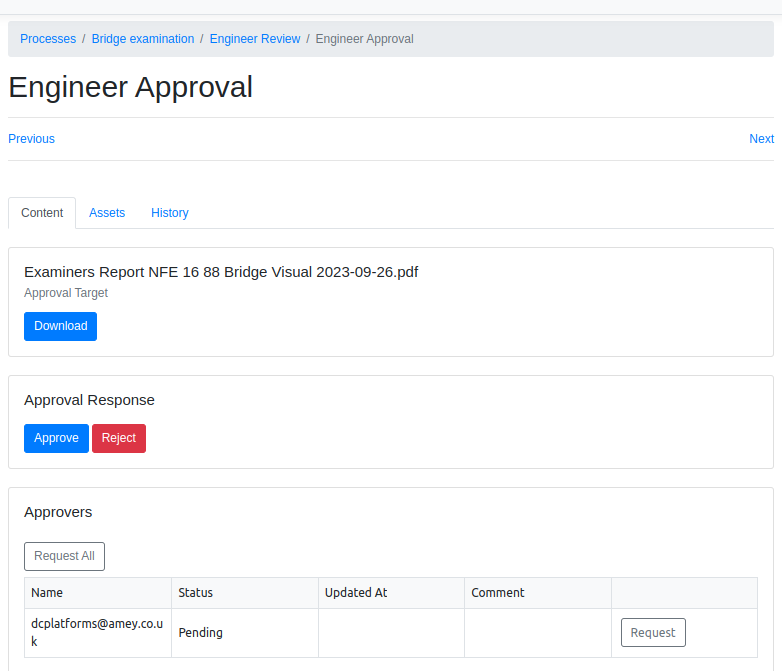
Once all the required activities under the Engineer Review are completed and approved by the Engineer, a batch will be created for the approved report and submitted into NR NEST. The generated batch can be examined using the "Batching" tool in the Exam tool.
If the Engineer rejects the report, it will be Returned To Examiner along with comments.
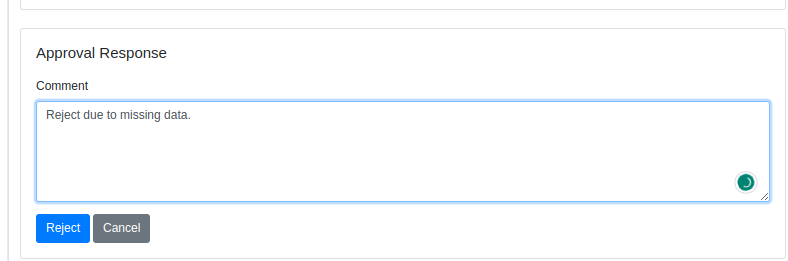
Upon rejection, the examination section of this report will be reopened, allowing the assigned Examiner to edit and view it.